
vfo-knob-phone
The Telephone firmware
vfo-knob-phone turns the knob into a telephone on one SIP account, with no radio
involved. The knob's microphone and speaker (or a Bluetooth headset) are the
handset. The firmware has its own small SIP client:
- it registers over UDP and finds its own way out through your router (no STUN, no port forwarding);
- audio is G.711 (A-law or µ-law) both ways;
- keys go out as RFC 4733 DTMF.
The face is SVXConnect's, with your favourite contacts where the talkgroups were.
The pictures are the knob's own screens; the orange marks are what your hand does. Their numbers are Ofcom's, kept for drama: no one answers them.
First run
Open the knob's configuration page: hold a finger on the meter arc until the
knob clicks, then browse to the address on the card. The user is admin and the
password is admin until you change it.
- Set the WiFi.
- Under Telephone, enter the account your provider gave you: the SIP user, its password, the SIP server, and the port (5060 unless told otherwise).
- Enter the account's own number. It is shown on the knob's face.
- Press Save the account.
The knob registers straight away. The page then shows registered and the address your router gives the knob outside, and the face reads connected.
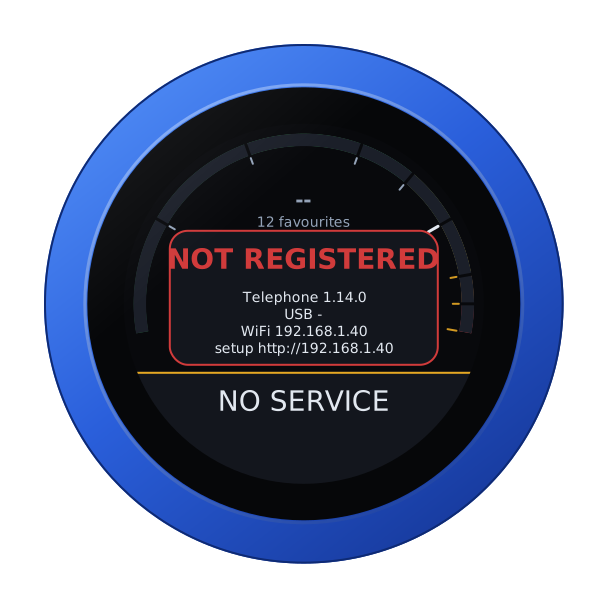
Until it is registered, the slab says NO SERVICE and a panel says why:
- NO ACCOUNT: no account is saved yet;
- NOT REGISTERED: the provider refused the account, so check the user and password;
- NO LINK: the knob is still trying.
The face
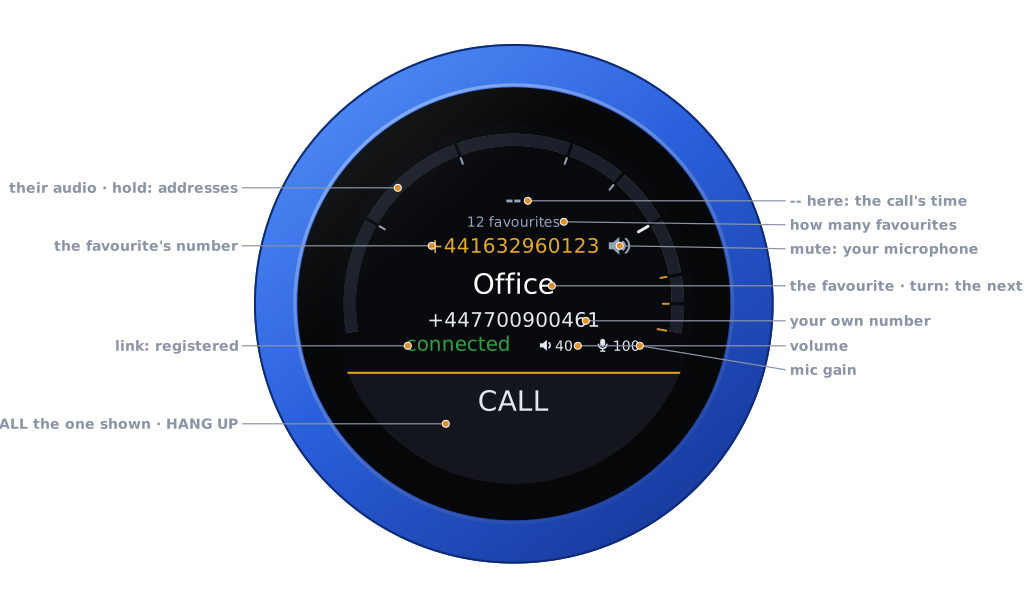
| Part | Tap | |
|---|---|---|
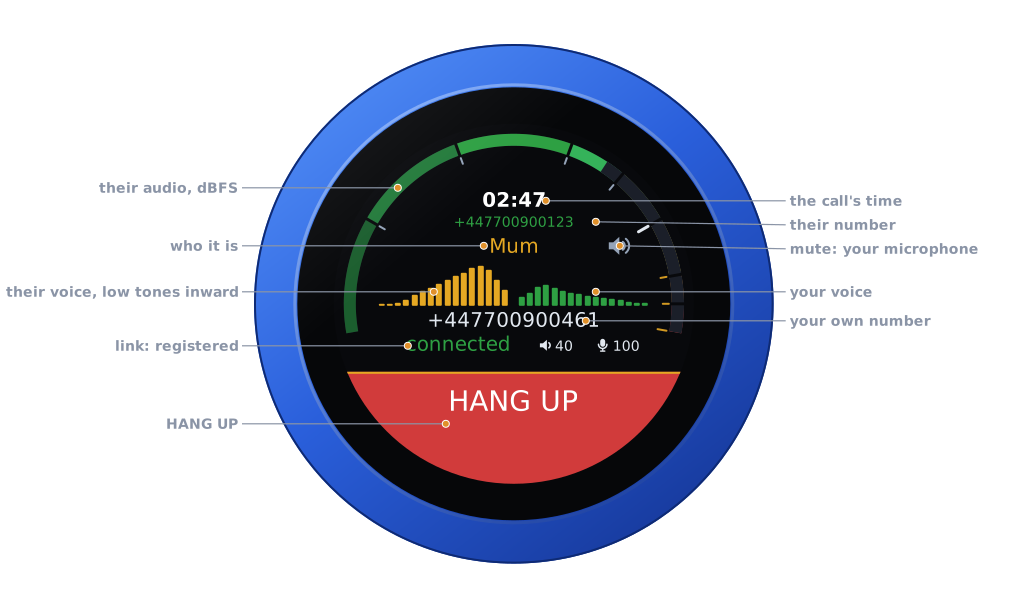
| The arc | hold: the address card | the other end's audio, in dBFS |
| Under the arc | — | the call's time, its state, and the other end's number; at rest, how many favourites there are |
| The number's row | — | the favourite's number at rest; in a call, who it is with |
| Mute | on, off | your microphone off: the other end hears silence, and you still hear them |
| The middle | — | the favourite on the dial, or the caller |
| Your number | — | the account's number, where SVXConnect shows the reflector |
| Link | — | connected while registered, connecting while trying, otherwise disconnected |
| Volume, mic gain | their editors | the knob's own levels |
| The slab | see Calling | CALL, a green ANSWER, a red HANG UP, ENDED, or NO SERVICE while not registered |
During a call, two spectra take the middle: the other end's voice on the left, yours on the right. Low tones are at the centre and high ones at the edges. The other end's stops at 3.4 kHz, as a telephone line does, while yours, from the knob's microphone, runs to 7 kHz.
Calling
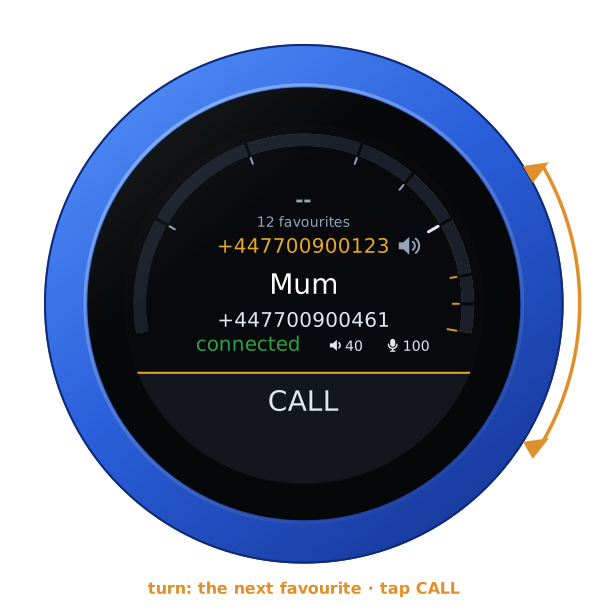
A favourite: turn the knob to it, then tap CALL.
A number by hand: swipe down from the top for the keypad, type the number, then tap CALL.
- Tap the backspace, right of the number, to delete its last digit.
- A long press on 0 as the first digit gives +, for an international number.
- A number longer than eight characters is shown in smaller type, so it fits.
- Swipe up to close the keypad.
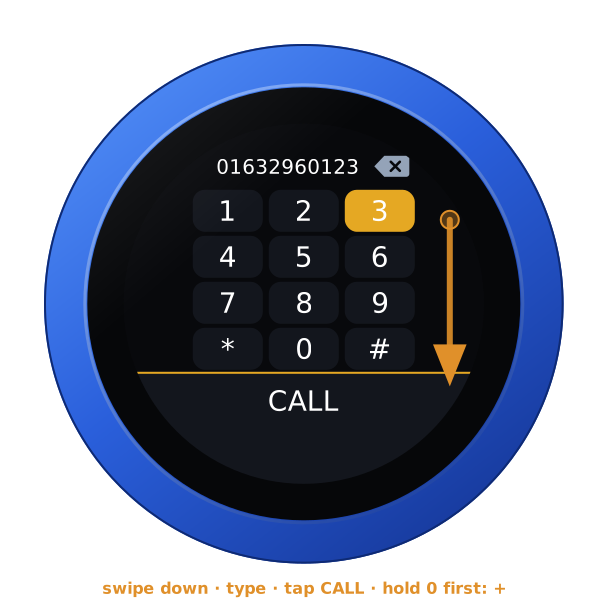
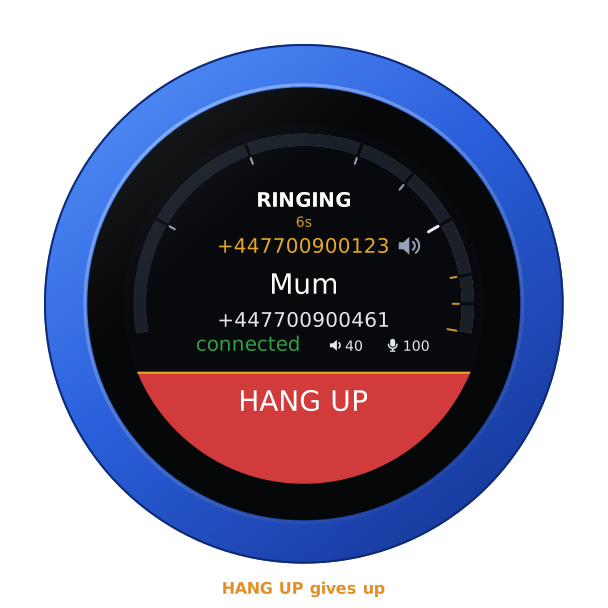
While it rings at the other end, the knob says CALLING, then RINGING, with the seconds so far. Tap HANG UP to give up.
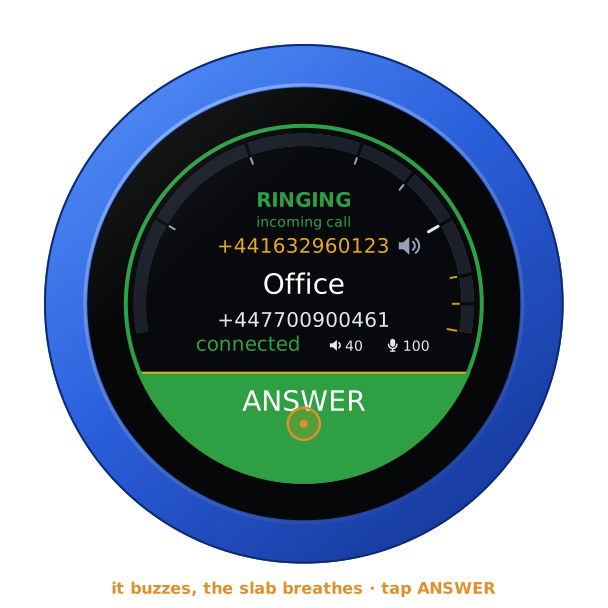
An incoming call: the knob buzzes in the ring's own rhythm (buzz-buzz, rest), its ANSWER slab breathes green and its rim turns green. Tap ANSWER to take it, or HANG UP to decline it.
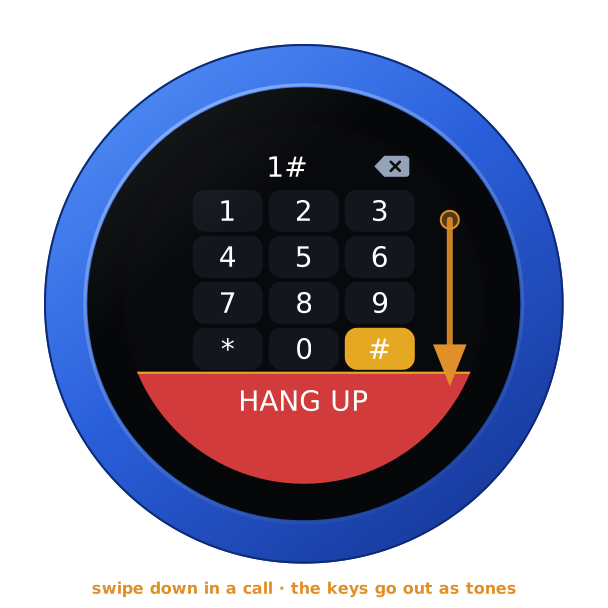
During a call: swipe down for the keypad. Its keys go out as DTMF, for menus and voicemail. Tap HANG UP to end the call.
Mute: tap the speaker right of the number. The other end hears silence until you tap it again, and you still hear them.
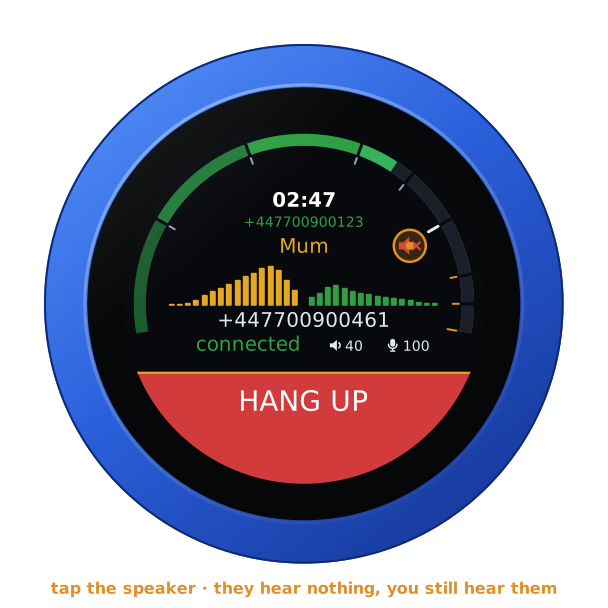
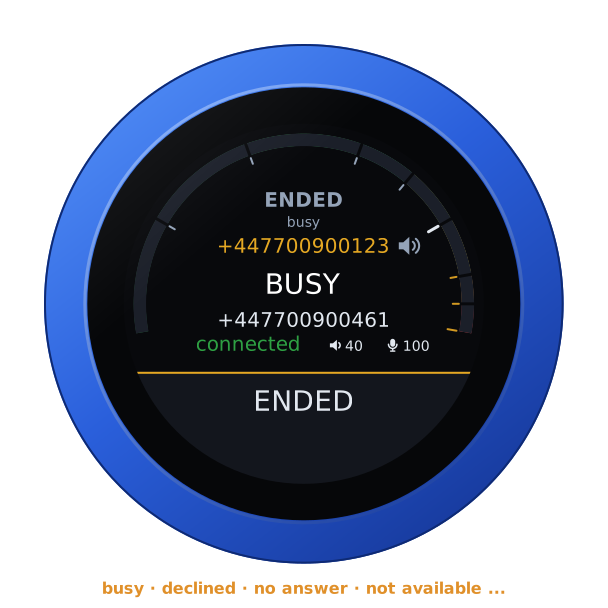
When a call ends, the knob says why: busy, declined, missed (a call that rang out unanswered), no answer, not available, no such number, refused, network trouble or failed. A call hung up from either end just shows CALL ENDED.
Without a headset, the speaker and microphone sit close together. While the other end is talking, the knob holds its microphone so they do not hear themselves back. With a headset, both directions run at once.
A Bluetooth headset
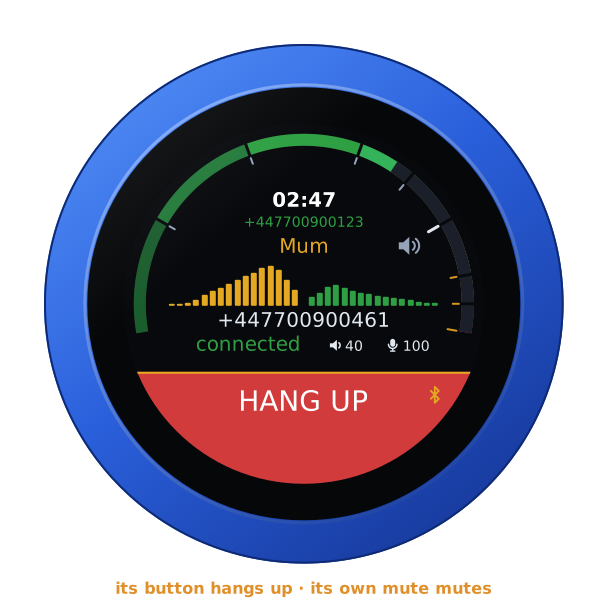
With a headset paired (A Bluetooth headset), it is the knob's ear and microphone during calls. Its logo shows at the slab's right end, and the slab stays the call's:
- Its audio opens for calls only, as with a mobile phone. It opens when you dial, so the ringback plays in it, or when you answer, and it closes when the call is over. Between calls the headset rests. A call ringing in is the knob's to ring, with its buzz and its face.
- The headset's button only hangs up. To answer a call or place one, use the slab.
- The headset's mute only mutes. It never keys anything.
Favourites
The Favourites list on the page holds up to 40 names and numbers. The dial steps through them in that order, and the slab calls the one shown.
The list can also come from Google Contacts (see below). Each sync replaces it.
For other programs
Behind the page's login (HTTP basic auth, admin and your password):
| Request | |
|---|---|
GET /api/phone | what the telephone is doing, as JSON: registered, call (idle; calling out; ringing in; talking; ended, with call_why), the other end's peer and peer_number, the call's seconds, muted, and public_ip |
GET /api/phone/dial?number=+3212345678 | call a number (POST with the same field works too) |
GET /api/phone/answer | answer the call that rings |
GET /api/phone/hangup | hang up, give up calling, or decline |
GET /api/phone/dtmf?digits=123# | keys, in a call |
GET /api/phone/favourites | the favourites, as JSON |
For example:
curl -u admin:admin http://vfo-knob.local/api/phone
curl -u admin:admin "http://vfo-knob.local/api/phone/dial?number=%2B3212345678"
Google Contacts
The knob can take your starred contacts from Google as its favourites. Each of their numbers becomes one entry; a contact with several numbers gets one entry per number, with its kind after the name (Mobile, Work). The knob syncs again by itself every six hours, and whenever you press Sync now. It needs only WiFi, not the SIP account, and it never syncs during a call.
Google wants an app of your own for this: a free Google Cloud project that only your account uses. It takes five minutes, once. The Google Contacts guide covers it in full: every step, every message the page can show, and what to do about each.
At console.cloud.google.com, create a project, for example VFO-Knob.
Under APIs & Services → Library, find the Google People API and press Enable.
Under Google Auth Platform (formerly the OAuth consent screen), press Get started:
- give the app a name and your email address;
- choose External as the audience;
- finish.
Then, under Audience, press Publish app. An app left in Testing signs you out of the knob after seven days.
Under Clients, press Create client and choose Web application. Under Authorized redirect URIs, add exactly
https://vfoknob.com/google.html. Press Create, then copy the Client ID and the Client secret. Google shows the secret only this once.On the knob's page, under Google Contacts:
- paste both values;
- press Save the client;
- press Sign in with Google.
Signing in, Google first warns that it hasn't verified this app. The app is your own, so choose Advanced, then Go to VFO-Knob, then Continue, and allow it to see your contacts. Google then returns you to the knob's page, which shows the sync. The favourites follow a few seconds later.
How it works:
- Google only returns a sign-in to an
httpspage, never to a knob on your network. So it returns to a small static page,google.html, which hands the sign-in to the knob it started from. That page forwards only to a LAN address or a local name, and the knob accepts only the sign-in it began itself. - The knob keeps Google's token. It only ever reads contacts.
- Sign out deletes the token. The favourites stay as they are.
- To use your own copy of that page, put it at another
httpsaddress, enter that address both under the client's redirect URIs and in the page's Sign-in returns through field.