
vfo-knob-clock
The Clock firmware
vfo-knob-clock turns the knob into a clock for the shack: local time on
the hands, UTC beside it, the date. There are four faces, and the dial goes
from one to the next. It keeps ten alarms. The time comes from the internet
over WiFi, so the knob needs no radio and no computer.
The pictures are the knob's own screens; the orange marks are what your hand does.
First run
Install it from the setup firmware's list (Clock), or under Firmware on any firmware's configuration page — see the setup guide.
Open the knob's configuration page: tap the glass for the address card, and
browse to the address on it. The user is admin and the password admin.
The page first asks for a password of the knob's own, 8 to 32 characters,
and shows nothing else until it has one. Under Screen:
- Time zone: where you are, Europe/Brussels until set. The page offers the browser's own zone; Save keeps it.
- Hours: 24-hour, or 12-hour with AM and PM, for the digital face.
- Clock face: the face the knob shows — the dial changes it too, and the one it rests on is kept.
- Second hand: on or off.
Under Alarms, the ten alarms, and how they ring — see the alarms. Under Bluetooth, a headset or a speaker for them to ring in. The knob plays nothing else: the page has no audio for this firmware.
The face
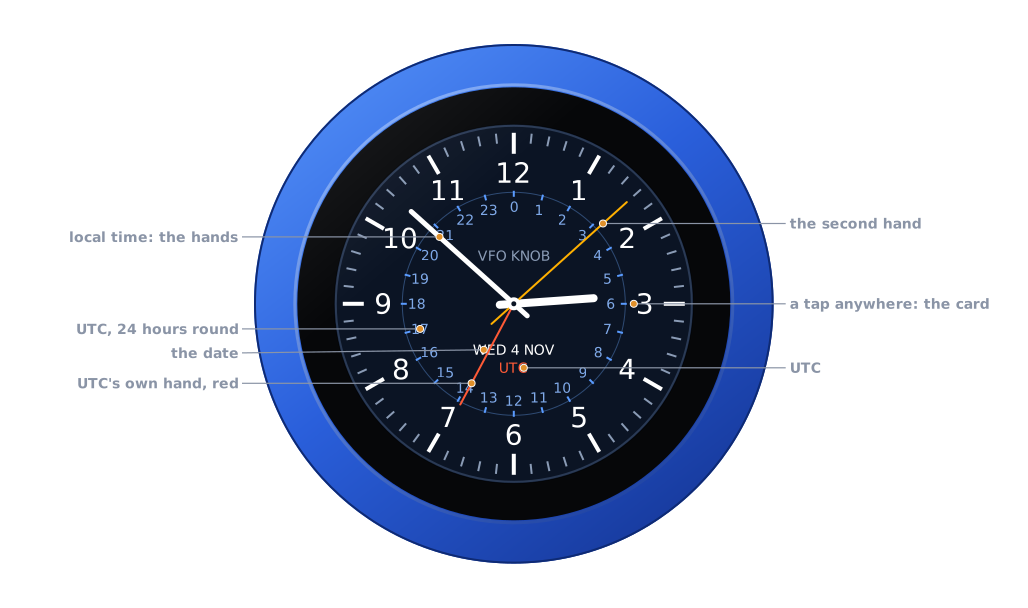
The shack clock is the first face. It is made for the radio room:
| Part | |
|---|---|
| The hands | local time, in the page's zone; the second hand in amber, ticking once a second |
| The 24-hour ring | UTC, 0 at the top and 12 at the bottom, inside the minute track |
| The red hand | UTC's own, on that ring: at 13:52 UTC it points just short of 14 |
| The date | the day, its number and the month, in local time |
There is no PTT, and no swipe does anything: the whole glass is the clock's.
The faces
Turn the knob: the next face, a detent each, round and round. Once the dial has rested for 0.6 s that face is kept, on the knob and on the page, and it is there after a restart.
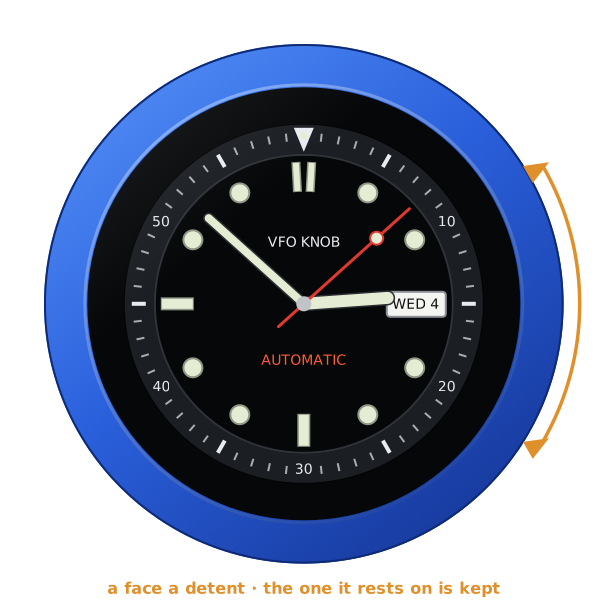
The Diver: a bezel marked to 60, lume dots and bars, the day and date in a window at 3, and a red second hand that sweeps six steps a second, as a diver's watch does.
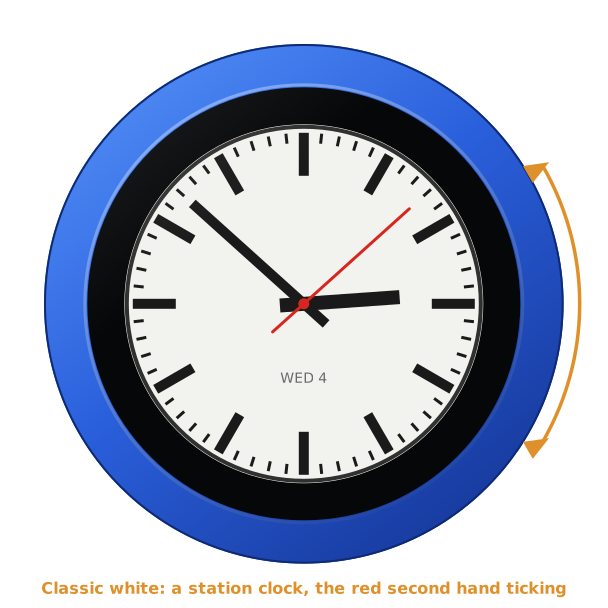
Classic white: a station clock, white with black bars, and a red second hand that ticks.
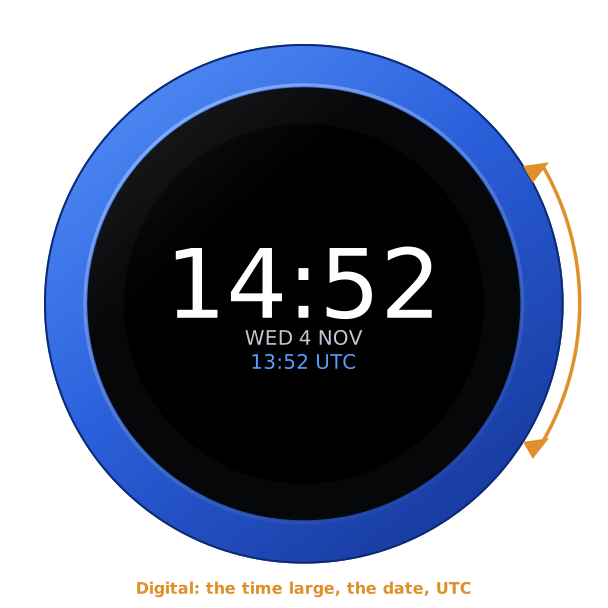
Digital: the time large, the colon blinking with the seconds, the date and UTC under it. Hours on the page sets 24 or 12 hours.
With Second hand: Off the analog faces have hours and minutes only, and the hands move once a minute.
The time
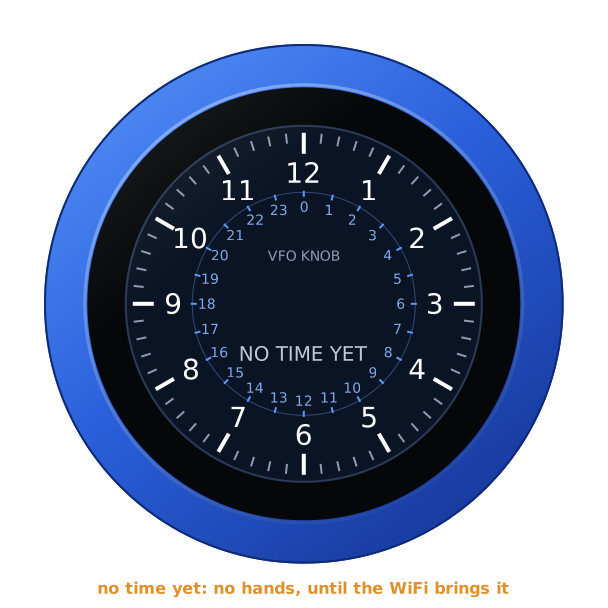
The knob takes the time from the internet (pool.ntp.org) once it is on WiFi, in UTC; the zone on the page is only how it is shown. Until the first answer, the face has no hands and says so:
If the knob loses the internet, it keeps time on its own. Once the time is a day without an answer, the hands and the digits turn grey: still near, but not to be trusted to the second.
So that nothing stands still on the screen for days, the whole face moves a pixel every three minutes, round a small square. You will not see it.
The alarms
The knob keeps ten alarms, each with a time, the days it rings on, and on or off. The next one to ring is on the dial, with a bell: its time, and its day too when that is more than a day away.
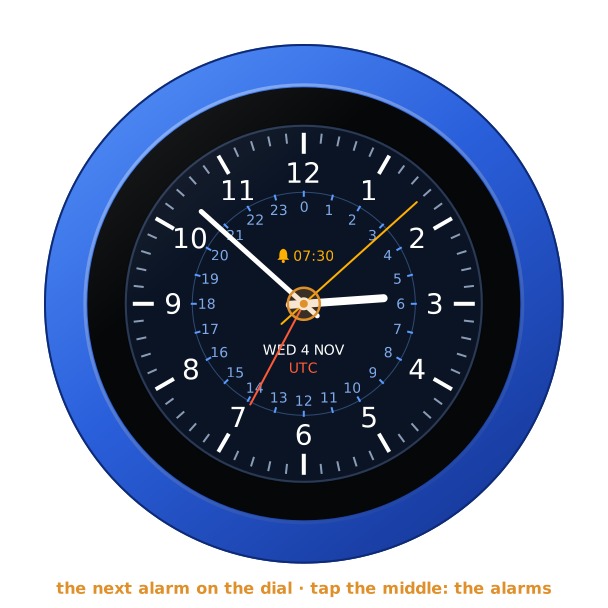
On the shack clock it stands where VFO KNOB does. The Diver has it under AUTOMATIC, Classic white and Digital under the date.
Tap the middle of the clock: the alarms, one at a time, its number at the top and ten dots round the glass, green for those on. It opens on the next to ring. Turn the knob for the next alarm, round and round.
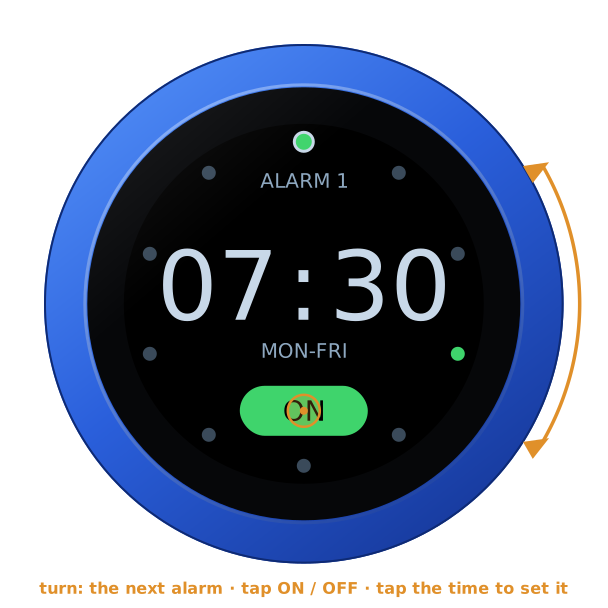
- Tap ON or OFF to switch the alarm.
- Tap its time to set it. The hours light up: turn the knob to set them, then tap. The minutes, the same, then tap. Then the days: turn through ONCE, EVERY DAY, MON-FRI, SAT, SUN, and each day alone, then tap. The alarm is kept, and on.
- Tap anywhere else, or leave it for 30 seconds, and the clock is back. An alarm half set stays as it was.
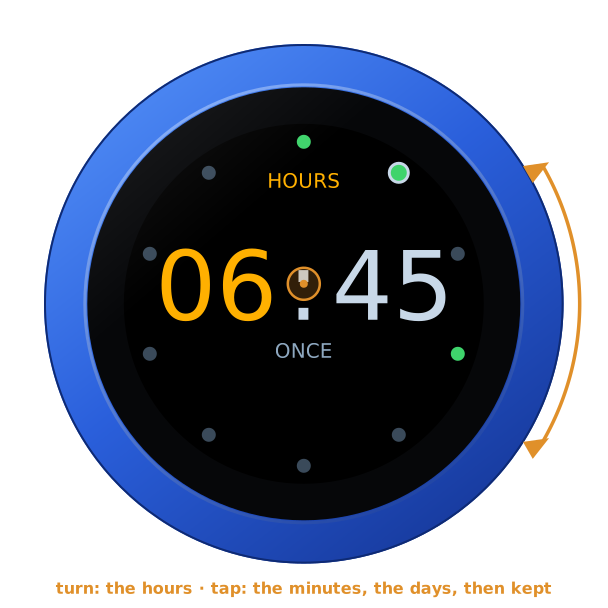
An alarm set ONCE rings the next time its time comes, and is then off. The configuration page can set any days at all, Monday and Thursday say; the knob shows them as MO TH.
When one rings
The screen lights up whatever it was doing, the alarm's time large in a flashing red ring. It rings with the motor, the sound, or both — both until set on the page:
- The motor buzzes in pairs, over and over.
- The sound is beeps, four at a time, that grow louder: a third of the page's volume at first, all of it after 30 seconds. They play in a Bluetooth headset or speaker while one is connected — its audio opens as the alarm starts, the jack playing the first second or so meanwhile, and closes as it stops — and on the jack, to headphones or a speaker there, while none is.
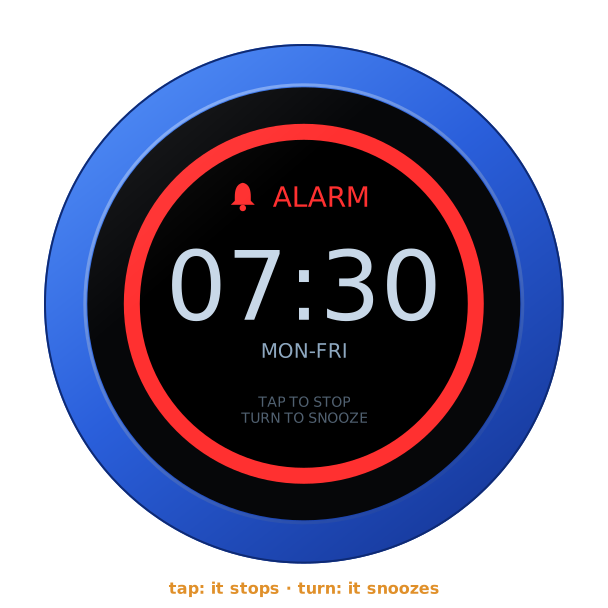
- Tap: it stops.
- Turn the knob: it snoozes, for 9 minutes until set. The dial then says when it rings again.
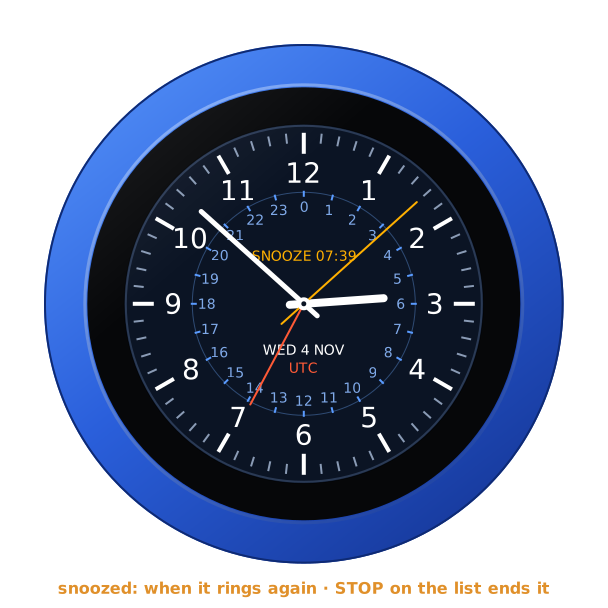
Left alone, it stops after 10 minutes, until set. A ringing alarm stops at a tap and snoozes at a turn even with the knob locked.
To end a snooze early, tap the middle of the clock: the alarms open on the snoozed one, its pill reading STOP. Tap it.
An alarm only rings once the knob has the time from the internet. Until then the list says NO TIME YET: NONE CAN RING.
On the page
Under Alarms, each alarm as a row: ticked to ring, its time, and its days, none ticked for once. Under them:
- Snooze: 1 to 30 minutes, 9 until set.
- Rings for: 1 to 30 minutes, 10 until set.
- Rings with: the motor and the sound, the motor, or the sound; the motor and the sound until set.
- The sound's volume: 0 to 100 %, 60 until set. It is the knob's VOLUME on this firmware: the jack plays at it, and a Bluetooth speaker that takes its volume from what plays to it turns itself to it — its own buttons change nothing for long.
Save keeps the alarms as they are on the page. Anything set on the knob since the page was opened is then lost, so reload the page first.
Brightness and the screensaver
The Clock is a screen to look at, so it has no screensaver and never goes dark until you set one on the page — see the screensaver guide. Brightness on the page sets how bright it is, 80 % until set.
The address card
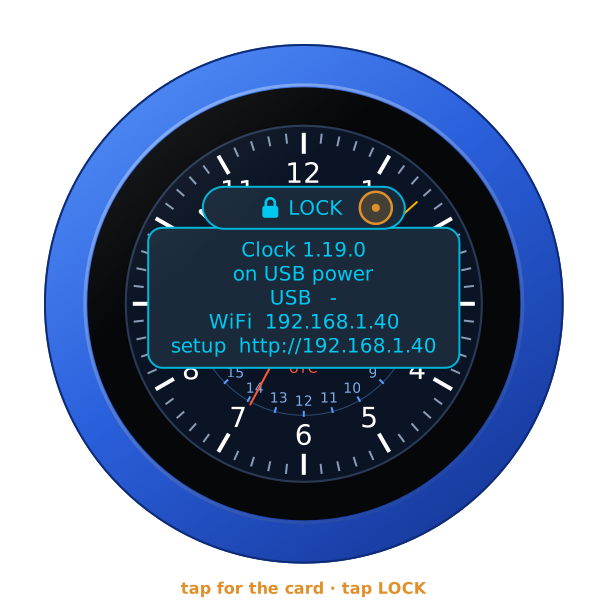
Tap anywhere but the middle of the glass: the address card, with the firmware and its version, the knob's power, and its addresses for the configuration page. Tap again, or wait ten seconds, and it goes.
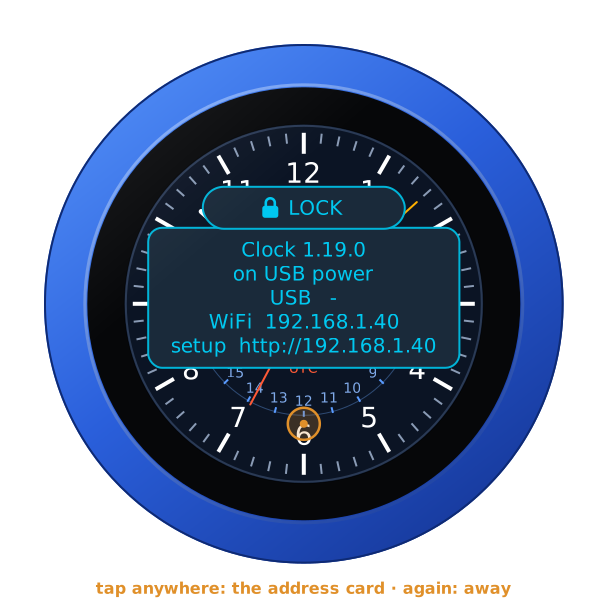
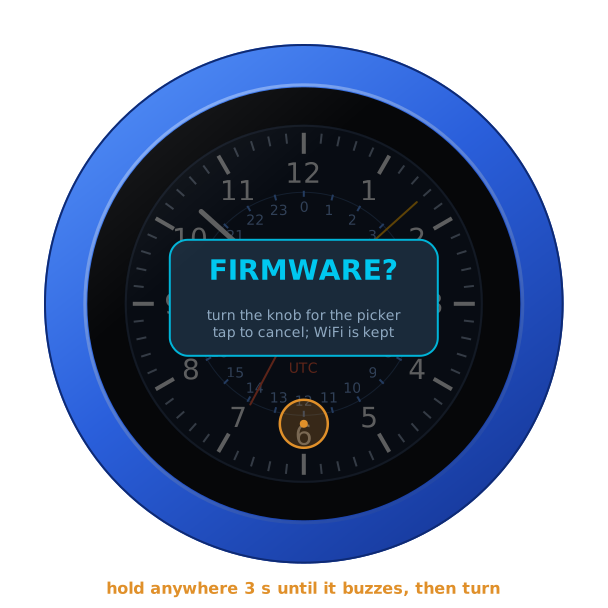
Hold anywhere for three seconds, until the knob buzzes: it asks FIRMWARE?. Turn the knob for yes, and it restarts into the setup firmware's list, to install another firmware. A tap, or ten seconds of nothing, says no.
On its own battery
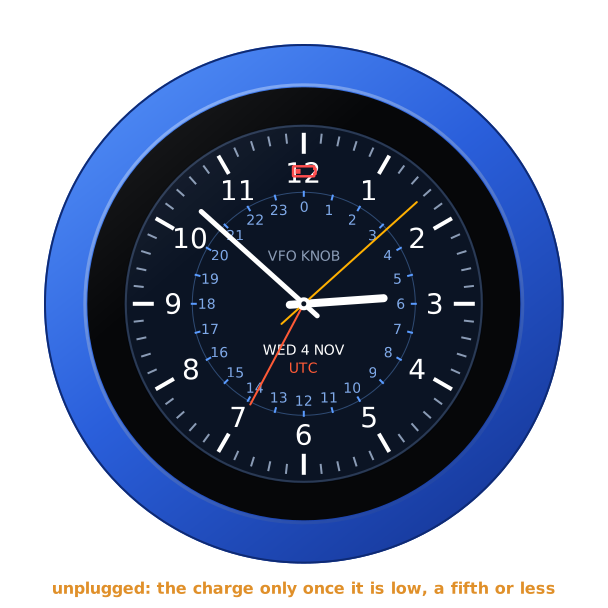
Unplugged, the knob runs on its own battery. The clock shows the charge only once it is low, a fifth or less, at the top of the face in red. The address card always says which: battery 85 %, or on USB power.
The lock
The address card carries LOCK, as on every firmware: tap it, and the knob is locked.
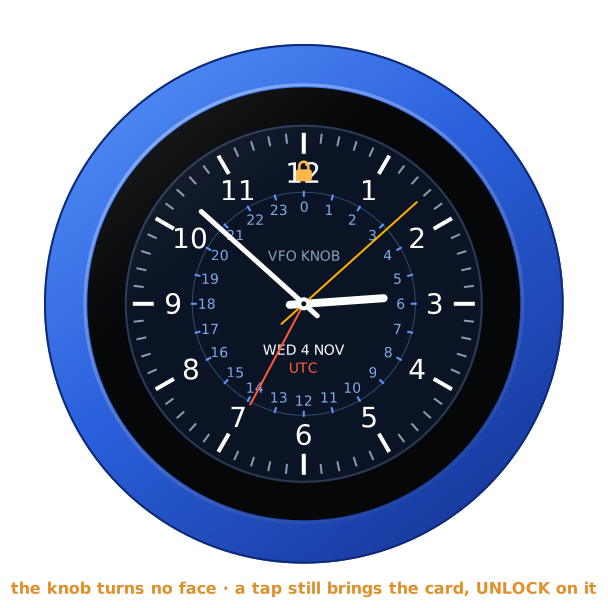
Locked, the padlock shows at the top, the dial changes no face, and the middle opens no alarms. A tap still brings the card, with UNLOCK on it. An alarm still rings, and stops at a tap. A restart unlocks the knob too.
Where it comes from
The faces are drawn by the knob's own code. They follow ideas from MilovdZee's Analog_Clock-esp32 (several faces; the hands greyed when the time is old) and Alan Wang's Saiko watch (the diver's dial, its day-date window and its sweeping second hand). No code or picture of theirs is in the firmware.